Automatic GPS Updates

One challenge with running Home Assistant in an RV is that it assumes your “house” never moves. That works great for sticks and bricks, but when your RV relocates, your city, state, and even timezone can change regularly. Manually updating that information gets old fast. I’ll explain how we approached this problem using the GPS already attached to our Victron system. There wasn’t a grand master plan here—this setup grew organically over time as we figured things out. The goal was simple: wherever the RV is parked, Home Assistant automatically knows our location without us doing anything.
Overview
Here’s how the system works:
- Our Victron Cerbo has a GPS antenna attached.
- Node-RED on the Cerbo watches for location changes
- When we move far enough or enough time passes, it sends the new coordinates
- Home Assistant receives them automatically
- A GeoLocator add-on converts GPS coordinates into city, state, and timezone
The benefits:
- Weather forecasts follow us automatically
- Timezone updates correctly
- Alexa gives the right local forecast
- No manual changes as we travel
Getting GPS Coordinates from the Victron Cerbo
Our GPS antenna is connected to the Victron Cerbo, it needs to be a compatible model, and it already reports location data to the Victron Remote Portal. We wanted to reuse that same data inside Home Assistant.
We started by installing the Victron GX Modbus TCP integration in Home Assistant. This integration talks directly to the Cerbo over the local network after you enable Modbus in the Cerbo settings. It exposes a lot of useful data: battery stats, inverter info, solar data, and more. However, it turns out latitude and longitude are not included in the standard data set.
Enabling Venus OS Large and Node-RED
To access the GPS coordinates, we enabled the Venus OS Large option in the Cerbo settings. This is just a toggle, no advanced setup required, no sideloading, no jailbreaking.
The benefit of Venus OS Large is that it enables Node-RED, which you’ll find under Settings → Integrations → Node-RED. Node-RED is a visual tool for creating “if this happens, then do that” logic. You don’t need to be a programmer to use it; most of the work is done by connecting blocks rather than writing code.
Node-RED handles several tasks:
- Listens for GPS updates
- Reads latitude and longitude
- Decides when an update is worth sending out
We already used Node-RED for other automations, so incorporating it here just made sense.
Publishing Location Updates with MQTT
This is where MQTT comes in. MQTT is like a group chat for smart and IoT devices. Here’s what it does:
- Devices publish messages to a topic (for example:
rv/location/latitude) - Other devices subscribe to that topic
- When a message is posted, everyone listening gets the update
In our case, Node-RED publishes latitude and longitude updates, and Home Assistant subscribes to those topics. To avoid unnecessary updates, Node-RED only publishes when:
- At least 30 minutes have passed, or
- The RV has moved more than approximately 5 miles
This filters out GPS “jitter” and reduces unnecessary lookups or updates. We run an MQTT broker using Eclipse Mosquitto, which is a widespread option. The broker is essentially a message hub that allows publishing and subscribing to topics.
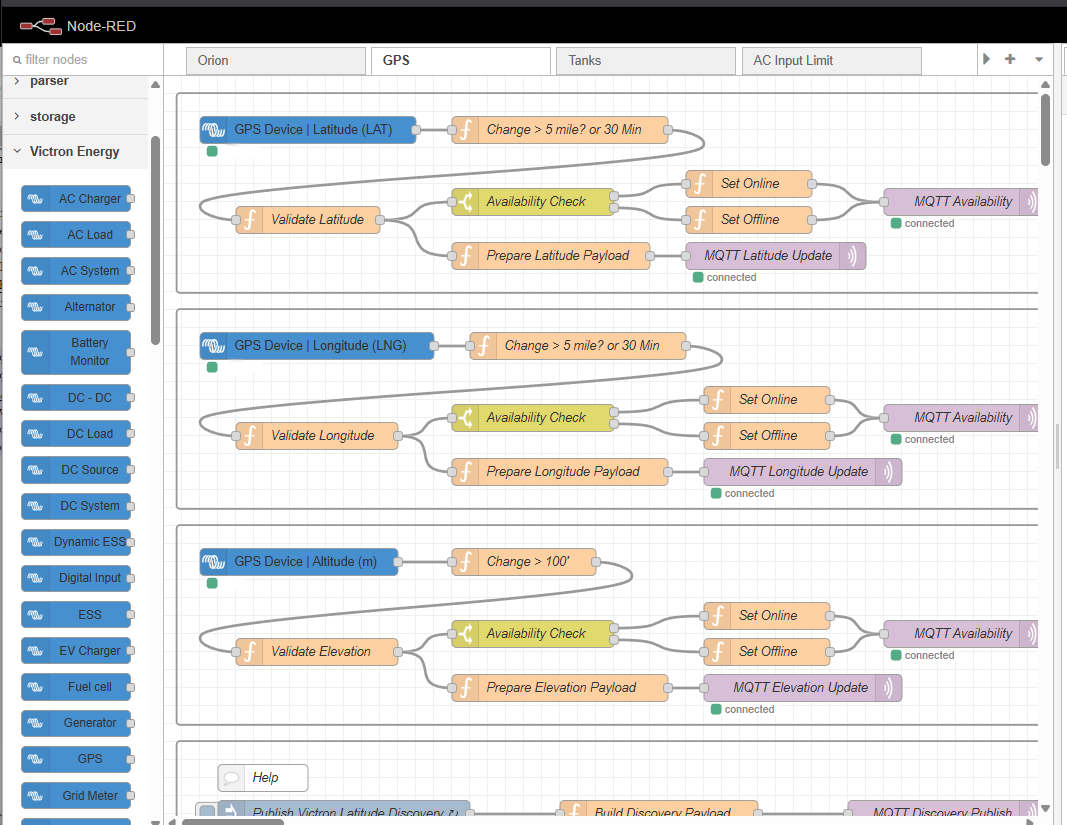
I’ve created a snippet of what I use in Node-RED on the Cerbo. The screenshot shows the flow structure, if anyone wants the complete flow file, let me know.
[{"id":"658e055e4e043619","type":"group","z":"00cff7e17546323e","style":{"stroke":"#999999","stroke-opacity":"1","fill":"none","fill-opacity":"1","label":true,"label-position":"nw","color":"#a4a4a4"},"nodes":["validate_latitude","availability_switch","set_online","set_offline","mqtt_publish_availability","prepare_latitude_payload","mqtt_publish_latitude","5c6504e79d6d4fc5","3e6dc3e076234e33"],"x":14,"y":19,"w":992,"h":222},{"id":"validate_latitude","type":"function","z":"00cff7e17546323e","g":"658e055e4e043619","name":"Validate Latitude","func":"var val = msg.payload;\n\nif (typeof val === \"number\" && val >= -90 && val <= 90) {\n msg.isValid = true;\n msg.payload = val;\n} else {\n msg.isValid = false;\n}\nreturn msg;","outputs":1,"timeout":"","noerr":0,"initialize":"","finalize":"","libs":[],"x":160,"y":160,"wires":[["availability_switch","prepare_latitude_payload"]]},{"id":"availability_switch","type":"switch","z":"00cff7e17546323e","g":"658e055e4e043619","name":"Availability Check","property":"isValid","propertyType":"msg","rules":[{"t":"true"},{"t":"false"}],"checkall":"true","repair":false,"outputs":2,"x":410,"y":140,"wires":[["set_online"],["set_offline"]]},{"id":"set_online","type":"function","z":"00cff7e17546323e","g":"658e055e4e043619","name":"Set Online","func":"msg.topic = \"home/custom_sensor/availability\";\nmsg.payload = \"online\";\nreturn msg;","outputs":1,"noerr":0,"x":650,"y":120,"wires":[["mqtt_publish_availability"]]},{"id":"set_offline","type":"function","z":"00cff7e17546323e","g":"658e055e4e043619","name":"Set Offline","func":"msg.topic = \"home/custom_sensor/availability\";\nmsg.payload = \"offline\";\nreturn msg;","outputs":1,"noerr":0,"x":650,"y":160,"wires":[["mqtt_publish_availability"]]},{"id":"mqtt_publish_availability","type":"mqtt out","z":"00cff7e17546323e","g":"658e055e4e043619","name":"MQTT Availability","topic":"","qos":"","retain":"true","respTopic":"","contentType":"","userProps":"","correl":"","expiry":"","broker":"51084ba313cf72ef","x":890,"y":140,"wires":[]},{"id":"prepare_latitude_payload","type":"function","z":"00cff7e17546323e","g":"658e055e4e043619","name":"Prepare Latitude Payload","func":"if (msg.isValid) {\n msg.topic = \"home/custom_sensor/latitude\";\n msg.payload = JSON.stringify({\n \"latitude\": msg.payload\n });\n return msg;\n} else {\n return null; // Do not publish invalid data\n}","outputs":1,"timeout":"","noerr":0,"initialize":"","finalize":"","libs":[],"x":430,"y":200,"wires":[["mqtt_publish_latitude"]]},{"id":"mqtt_publish_latitude","type":"mqtt out","z":"00cff7e17546323e","g":"658e055e4e043619","name":"MQTT Latitude Update","topic":"","qos":"","retain":"true","respTopic":"","contentType":"","userProps":"","correl":"","expiry":"","broker":"51084ba313cf72ef","x":680,"y":200,"wires":[]},{"id":"5c6504e79d6d4fc5","type":"victron-input-gps","z":"00cff7e17546323e","g":"658e055e4e043619","service":"com.victronenergy.gps/0","path":"/Position/Latitude","serviceObj":{"service":"com.victronenergy.gps/0","name":"GPS Device"},"pathObj":{"path":"/Position/Latitude","type":"float","name":"Latitude (LAT)"},"name":"","onlyChanges":false,"roundValues":"3","x":160,"y":60,"wires":[["3e6dc3e076234e33"]]},{"id":"3e6dc3e076234e33","type":"function","z":"00cff7e17546323e","g":"658e055e4e043619","name":"Change > 5 mile? or 30 Min","func":"// Configuration\nconst threshold = 0.0724; // ~2 mile x/69\nconst intervalMinutes = 30;\n\n// Retrieve context\nconst prev = context.get('lat_previous') || null;\nconst lastSent = context.get('last_sent_timestamp') || 0;\n\nconst current = parseFloat(msg.payload);\nconst now = Date.now();\n\n// Helper: has 30 minutes passed since last send\nconst intervalMs = intervalMinutes * 60 * 1000;\nconst timeElapsed = (now - lastSent) > intervalMs;\n\nif (prev === null) {\n // On boot: publish immediately\n context.set('lat_previous', current);\n context.set('last_sent_timestamp', now);\n return msg;\n}\n\nif (Math.abs(current - prev) > threshold || timeElapsed) {\n context.set('lat_previous', current);\n context.set('last_sent_timestamp', now);\n return msg; // send update\n} else {\n return null; // suppress update\n}\n","outputs":1,"timeout":"","noerr":0,"initialize":"// Code added here will be run once\n// whenever the node is started.\ncontext.set('lat_previous', null);\ncontext.set('last_sent_timestamp', 0);","finalize":"","libs":[],"x":440,"y":60,"wires":[["validate_latitude"]]},{"id":"51084ba313cf72ef","type":"mqtt-broker","name":"Wildebeest","broker":"192.168.9.90","port":"1883","clientid":"","autoConnect":true,"usetls":false,"protocolVersion":"4","keepalive":"60","cleansession":true,"autoUnsubscribe":true,"birthTopic":"","birthQos":"0","birthRetain":"false","birthPayload":"","birthMsg":{},"closeTopic":"","closeQos":"0","closeRetain":"false","closePayload":"","closeMsg":{},"willTopic":"","willQos":"0","willRetain":"false","willPayload":"","willMsg":{},"userProps":"","sessionExpiry":""}]
Here are the two functions which determine whether to send an update or not based on the estimate of distance moved based on ~midpoint USA coordinates:
// Configuration
const threshold = 0.0724; // ~5 mile (n/s) latitude 39

if (Math.abs(current - prev) > threshold || timeElapsed) {
    context.set('lat_previous', current);
    context.set('last_sent_timestamp', now);
    return msg; // send update
} else {
    return null; // suppress update
}

// Longitude threshold:
const threshold = 0.0926; // ~5 mile (e/w) at -97/36

if (Math.abs(current - prev) > threshold || timeElapsed) {
	context.set('lon_previous', current);
	context.set('last_sent_timestamp', now);
	return msg; // send update
} else {
	return null; // suppress update
}
Using the Location in Home Assistant
Once Home Assistant receives latitude and longitude, you can use it in several ways.
Weather Integration with Windy
Some services, like Windy, can use coordinates directly. For example, we embed the live radar using the RV’s current location:
https://embed.windy.com/embed.html?type=map&location=coordinates&zoom=10&overlay=radar&product=radar&level=surface&lat={{...}}&lon={{...}}
This means the weather radar automatically updates for us wherever we are.
Converting Coordinates to City, State, and Timezone
Other services, including parts of Home Assistant itself, want a city and state rather than raw GPS coordinates. For that, we use GeoLocator by SmartyVan.
GeoLocator performs several functions:
- Takes latitude and longitude coordinates
- Converts them into city and state using one of several services (we use GeoNames)
- Automatically updates the timezone, city, and state
The correct timezone component is particularly important. Having the wrong time can break automations, schedules, alarms, and other time-dependent functions.
Alexa and Location-Aware Weather
With city and state available in Home Assistant, Alexa integrations become straightforward. For example, we can trigger Alexa with a command like:
What's the weather in {{ states('sensor.geolocator_city') }}, {{ states('sensor.geolocator_state') }}
Alexa responds with the correct local forecast, no manual updates needed as we travel.
Why Docker Makes This All Work
All of this runs on a small NUC-style PC in the RV. We use Docker, which means each application runs in its own “container.” Think of containers like separate apps, all running on the same computer but not interfering with each other. It’s similar to apps on your phone: you can update or restart one without affecting the others. Once it’s set up, you don’t really need to think about Docker at all.
On that NUC-style PC, we run the following containers:
- Home Assistant
- Mosquitto (MQTT broker)
- Node-RED (separate from the one on the Cerbo)
- Jellyfin (Media Server)
- Pi-hole (Ad blocker)
- Additional services as needed
Docker makes it easy to update, restart, or replace any one part without breaking anything else. Each container is isolated, which means if one service has an issue, it doesn’t take down the entire system.
The Result
With this setup in place, we get:
- Location updates automatically
- Weather forecasts are current wherever we park
- Timezone stays correct
- Voice assistants give accurate results
Importantly, once everything is configured, it runs quietly in the background. We can drive from Tennessee to Arizona, and by the time we’re parked and leveled, Home Assistant already knows where we are. The weather dashboard shows local conditions, Alexa knows the local forecast, and all our time-based automations work correctly without any intervention.
It’s one of those automation projects where the effort of setting it up pays dividends every single time we move. The system just works, which is exactly how automation should be.